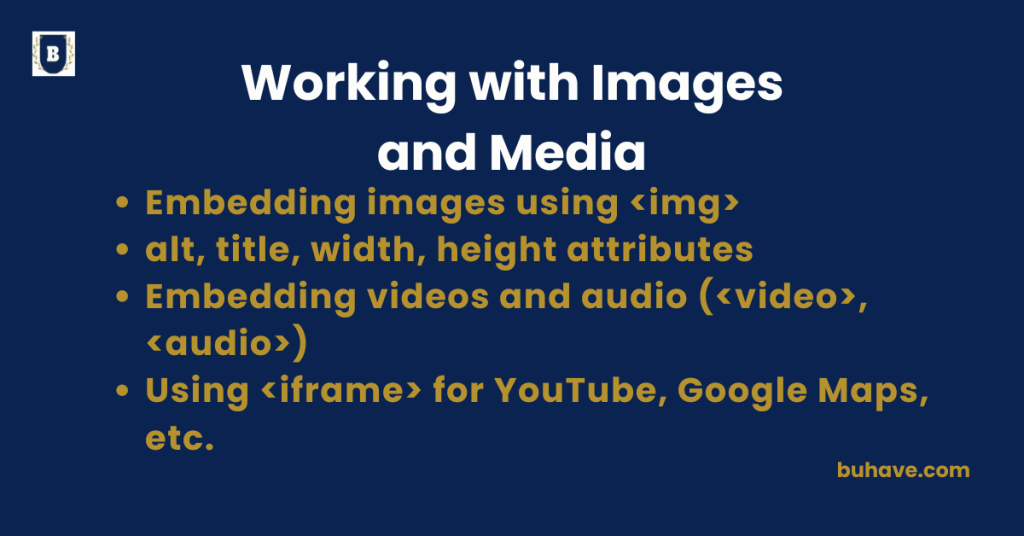
Embedding images using <img>
The <img> tag in HTML is used to embed images into a webpage, helping enhance visual appeal and user understanding. It is a self-closing tag and does not require a closing tag.
Basic Syntax
<img src=”image.jpg” alt=”Description of image”>
For a broader understanding of how images fit into HTML structure and accessibility, see the Semantic HTML and Structure lesson.
Attributes:
| Attribute | Purpose |
|---|---|
src |
(Required) URL or path to the image file |
alt |
(Required) Descriptive alternative text for accessibility and SEO |
width |
Sets the display width (in pixels or %) |
height |
Sets the display height (in pixels or %) |
title |
Tooltip shown on hover (optional) |
loading |
Improves performance with lazy loading (lazy, eager) (optional) |
Examples
Local Image:
<img src=”images/logo.png” alt=”Company Logo” width=”150″>
External Image:
<img src=”https://example.com/banner.jpg” alt=”Website Banner”>
Responsive Image:
<img src=”photo.jpg” alt=”Nature” style=”max-width:100%; height:auto;”>
Advanced Usage
With title (hover text):
<img src=”team.jpg” alt=”Team Photo” title=”Our Team”>
With loading=”lazy” (performance-friendly):
<img src=”large-image.jpg” alt=”High-resolution landscape” loading=”lazy”>
For metadata and head elements that improve SEO for images, see Metadata and Head Elements.
Accessibility Tips
- Always use a descriptive alt to help screen readers.
- Avoid using images as buttons without proper labels.
- Use CSS for decorative images and mark them with alt=”” if they’re purely visual.
Common Mistakes
- Missing alt: Affects accessibility and SEO.
- Broken src path: Image won’t load — check file paths and URLs.
- Hardcoded dimensions without responsiveness: May look bad on mobile.
Complete Example:
<!DOCTYPE html>
<html>
<body>
<h2>Team Introduction</h2>
<img src=”team.jpg” alt=”Our Team Standing Together” width=”600″ loading=”lazy”>
<p>Meet the amazing people behind our company.</p>
</body>
</html>
alt, title, width, height attributes
When embedding images in HTML using the <img> tag, four key attributes—alt, title, width, and height—play important roles in accessibility, user experience, performance, and design. For a broader understanding of how images fit into HTML semantics and accessible markup, see the Semantic HTML and Structure course.
alt Attribute (Alternative Text)
Purpose:
- Provides text description of the image for screen readers and when the image fails to load.
- Improves accessibility and is crucial for SEO.
Example:
<img src=”dog.jpg” alt=”A brown dog playing in the park”>
Best Practices:
- Keep it concise but descriptive
- Use alt=”” for decorative images (screen readers will skip it)
For metadata and head elements that improve SEO for images, see Metadata and Head Elements.
title Attribute (Tooltip Text)
Purpose:
- Adds a tooltip that appears when users hover over the image.
- Can offer extra context or a short label.
Example:
<img src=”product.png” alt=”Blue sneakers” title=”Click to view product details”>
Notes:
- Not a replacement for alt (screen readers may ignore title)
- Use for supplementary information only
For a broader look at multimedia in HTML, see the HTML5 Features course.
width and height Attributes (Image Dimensions)
Purpose:
- Control the display size of the image.
- Can be defined in pixels (px) or percentages (%).
Example (Fixed size):
<img src=”photo.jpg” alt=”Mountain view” width=”300″ height=”200″>
Example (Responsive with CSS):
<img src=”photo.jpg” alt=”Mountain view” style=”width: 100%; height: auto;”>
Tips:
- Always maintain aspect ratio to avoid image distortion.
- Set dimensions to reduce layout shift (better performance and UX).
- Avoid stretching images by mismatching actual and display dimensions.
For more on semantic markup and responsive imagery, see Introduction to HTML and CSS Properties. Helpful resources include the Introduction to HTML course and the CSS Properties course.
Full Example:
<img
src=”team.jpg”
alt=”Our company team smiling during the annual meetup”
title=”Meet our team”
width=”600″
height=”400″>
Embedding videos and audio (<video>, <audio>)
HTML5 introduced the <video> and <audio> tags, making it easy to embed multimedia content without needing plugins like Flash. These tags support multiple file formats and provide playback controls for users.
Embedding Videos with <video>
Basic Syntax:
<video src=”movie.mp4″ controls></video>
Common Attributes:
<table style=”width: 100%; border-collapse: collapse; font-family: Arial, sans-serif; margin: 20px 0; box-shadow: 0 1px 3px rgba(0,0,0,0.1);”>
<thead>
<tr style=”background-color: #f5f7fa;”>
<th style=”padding: 12px 15px; text-align: left; border-bottom: 2px solid #e1e5eb;”>Attribute</th>
<th style=”padding: 12px 15px; text-align: left; border-bottom: 2px solid #e1e5eb;”>Description</th>
</tr>
</thead>
<tbody>
<tr>
<td style=”padding: 12px 15px; border-bottom: 1px solid #e1e5eb;”><code style=”background: #f0f4f8; padding: 2px 5px; border-radius: 3px;”>src</code></td>
<td style=”padding: 12px 15px; border-bottom: 1px solid #e1e5eb;”>Path to the video file</td>
</tr>
<tr>
<td style=”padding: 12px 15px; border-bottom: 1px solid #e1e5eb;”><code style=”background: #f0f4f8; padding: 2px 5px; border-radius: 3px;”>controls</code></td>
<td style=”padding: 12px 15px; border-bottom: 1px solid #e1e5eb;”>Displays built-in playback controls (play, pause, volume, etc.)</td>
</tr>
<tr>
<td style=”padding: 12px 15px; border-bottom: 1px solid #e1e5eb;”><code style=”background: #f0f4f8; padding: 2px 5px; border-radius: 3px;”>autoplay</code></td>
<td style=”padding: 12px 15px; border-bottom: 1px solid #e1e5eb;”>Starts playing automatically when page loads</td>
</tr>
<tr>
<td style=”padding: 12px 15px; border-bottom: 1px solid #e1e5eb;”><code style=”background: #f0f4f8; padding: 2px 5px; border-radius: 3px;”>loop</code></td>
<td style=”padding: 12px 15px; border-bottom: 1px solid #e1e5eb;”>Plays the video in a loop</td>
</tr>
<tr>
<td style=”padding: 12px 15px; border-bottom: 1px solid #e1e5eb;”><code style=”background: #f0f4f8; padding: 2px 5px; border-radius: 3px;”>muted</code></td>
<td style=”padding: 12px 15px; border-bottom: 1px solid #e1e5eb;”>Mutes the video by default</td>
</tr>
<tr>
<td style=”padding: 12px 15px; border-bottom: 1px solid #e1e5eb;”><code style=”background: #f0f4f8; padding: 2px 5px; border-radius: 3px;”>poster</code></td>
<td style=”padding: 12px 15px; border-bottom: 1px solid #e1e5eb;”>Displays an image before the video starts</td>
</tr>
<tr>
<td style=”padding: 12px 15px;”><code style=”background: #f0f4f8; padding: 2px 5px; border-radius: 3px;”>width, height</code></td>
<td style=”padding: 12px 15px;”>Sets dimensions of the video player</td>
</tr>
</tbody>
</table>
Example with Multiple Sources:
<video width=”640″ height=”360″ controls poster=”preview.jpg”>
<source src=”video.mp4″ type=”video/mp4″>
<source src=”video.webm” type=”video/webm”>
Your browser does not support the video tag.
</video>
For a broader look at multimedia in HTML, see the HTML5 Features course.
Embedding Audio with <audio>
Basic Syntax:
<audio src=”audio.mp3″ controls></audio>
Common Attributes:
| Attribute | Description |
|---|---|
src |
Path to the audio file (MP3, WAV, OGG) |
controls |
Displays audio controls (play, pause, volume) |
autoplay |
Starts playing automatically (may be blocked by browsers) |
loop |
Plays the audio on repeat |
muted |
Starts muted (no audio output) |
Example with Multiple Sources:
<audio controls>
<source src=”audio.mp3″ type=”audio/mpeg”>
<source src=”audio.ogg″ type=”audio/ogg”>
Your browser does not support the audio element.
</audio>
Learn more about HTML5 multimedia capabilities in the HTML5 Features course.