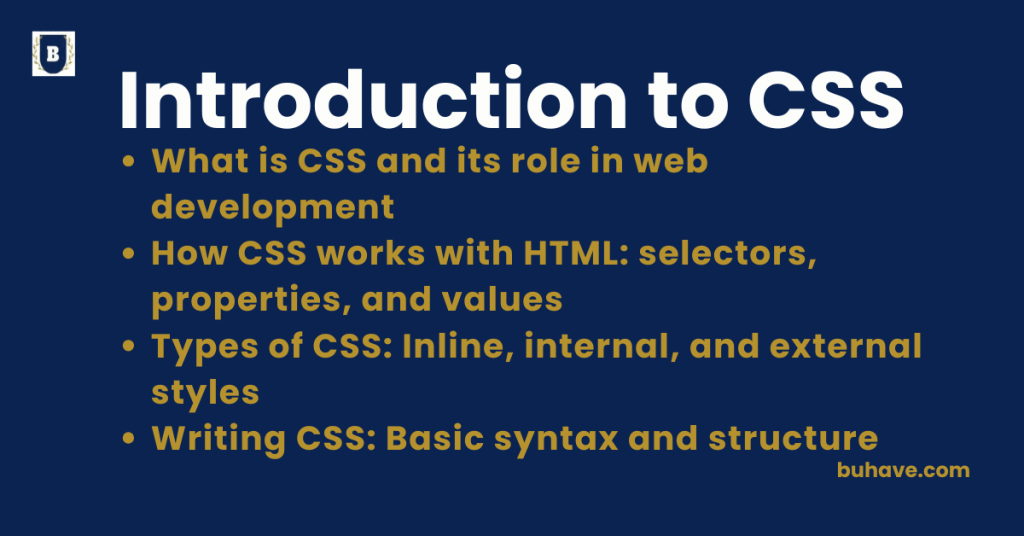
What is CSS and its role in web development
CSS (Cascading Style Sheets) is a stylesheet language used to control the visual appearance and layout of web pages. It defines how HTML elements are displayed on screen, paper, or in other media. While HTML structures the content, CSS handles the design, enabling developers to create visually engaging, user-friendly websites by styling text, images, layouts, and even adding animations and responsiveness. For a practical introduction to core properties, see Basic CSS Properties.
Detailed Role of CSS in Web Development
1. Separation of Structure and Style:
- CSS separates the content (HTML) from presentation (styling). This means you can change the design without touching the core HTML, making development cleaner and more manageable.
2. Design and Layout Control:
- With CSS, developers can control the positioning, size, colors, fonts, spacing, and overall layout of elements on a web page. Layout techniques like Flexbox and Grid provide powerful ways to build responsive and organized designs.
3. Consistency Across Pages:
- A single CSS file can be linked to multiple HTML pages, ensuring that the style remains consistent across the entire website. This centralization simplifies updates and maintenance.
4. Responsive Web Design:
- CSS allows websites to adapt to different screen sizes and devices using techniques like media queries. This ensures that a site looks good on desktops, tablets, and smartphones, improving usability and accessibility.
5. Visual Enhancements and Animations:
- CSS supports animations, transitions, and transforms, enabling developers to add interactivity and dynamic visual effects without JavaScript. Hover effects, fade-ins, sliding menus, and animated loaders can all be done with CSS.
6. Customization and Branding:
- Through color schemes, fonts, and custom styles, CSS enables brands to create a distinct identity online. Visual consistency across a brand’s website builds trust and professionalism.
7. Accessibility Improvements:
- CSS helps make websites more accessible by providing control over visual contrast, text readability, focus outlines, and visual order, helping users who rely on assistive technologies.
8. Performance Optimization:
- External CSS files allow styles to be cached by browsers, reducing page load times after the first visit. Well-structured CSS contributes to faster, more efficient websites.
9. Cross-Browser Compatibility:
- CSS techniques and frameworks help ensure that web pages look and function properly across different browsers and devices, offering a consistent user experience.
10. Framework and Preprocessor Support:
- CSS can be extended through frameworks (like Bootstrap and Tailwind) and preprocessors (like SASS and LESS) to speed up development, enforce structure, and add powerful features like nesting and variables.
For more on creating smooth visual effects without heavy JavaScript, see CSS Transitions and Animations.
Conclusion:
CSS is a cornerstone technology of web development, critical for creating beautiful, efficient, and accessible websites. It bridges the gap between content and user experience, providing developers with the tools to design layouts, control styling, and enhance interaction, ultimately shaping how users perceive and interact with a website.
For practical guidance on writing maintainable CSS, see Best Practices and Optimization.
How CSS works with HTML: selectors, properties, and values
CSS (Cascading Style Sheets) works directly with HTML to control the presentation and visual layout of web content. While HTML provides the structure and meaning (like headings, paragraphs, links, images), CSS is used to style these elements — changing colors, fonts, spacing, alignment, positioning, and more. For a broader foundation in HTML, see Introduction to HTML.
The interaction between CSS and HTML happens mainly through three core concepts: selectors, properties, and values.
1. Selectors
Selectors are patterns used to target and select specific HTML elements that you want to style.
Selectors tell the browser “apply these styles to this/these element(s)”.
Common types of selectors:
- Element Selector: Targets all instances of an element.
p {
color: blue;
}
- Class Selector: Targets any element with a specific class attribute.
.highlight {
background-color: yellow;
}
- ID Selector: Targets a unique element with a specific ID attribute.
#main-header {
font-size: 32px;
}
- Attribute Selector: Targets elements with specific attributes.
input[type=”text”] {
border: 1px solid gray;
}
- Pseudo-classes and Pseudo-elements:
- Pseudo-class example (hover state):
a:hover {
color: red;
}
- Pseudo-element example (adding content before):
p::before {
content: “Note: “;
color: orange;
}
2. Properties
Properties are specific characteristics you want to change about the selected elements.
Each property defines what aspect of the element’s style you are modifying — like color, size, margin, border, etc.
Examples of CSS properties:
- color: Sets the text color.
- background-color: Sets the background color.
- font-size: Changes the size of text.
- margin: Controls the space outside the element.
- padding: Controls the space inside the element’s border.
- border: Defines a border around the element.
- width and height: Sets the size of the element.
- display: Defines how an element is rendered (block, inline, flex, etc.).
Example:
h1 {
color: navy;
font-size: 48px;
text-align: center;
}
3. Values
Each property needs a value that tells the browser how exactly to apply the styling.
Values can be keywords, measurements (like pixels, percentages, rems), colors, URLs, or other settings.
Examples of values:
- red, blue, navy (color names)
- #ff0000, rgb(255,0,0) (color codes)
- 20px, 2rem, 50% (size units)
- center, left, right (alignment keywords)
- none, block, inline-flex (display settings)
Example:
div {
background-color: #f0f0f0;
padding: 20px;
width: 80%;
}
How It All Connects
- The selector finds the HTML element(s).
- The property defines what you want to change.
- The value tells how you want to change it.
Example Bringing It Together: HTML:
<p class=”intro”>Welcome to our site!</p>
CSS:
.intro {
color: green;
font-size: 18px;
margin-top: 20px;
}
Explanation:
The .intro class selects the paragraph, color property changes text to green, font-size sets the text size to 18px, and margin-top adds 20px of space above it.
Summary:
CSS works with HTML by selecting specific elements (selectors), defining which styles to change (properties), and specifying exactly how to change them (values). This powerful combination allows developers to create clean, organized, visually appealing websites while keeping the content and design layers separate and easier to manage.
Types of CSS: Inline, internal, and external styles
CSS can be applied to HTML documents in three main ways: inline, internal, and external. Each type controls how styles are added and organized, and each has specific use cases depending on the size, complexity, and requirements of a project.
1. Inline CSS
Definition:
Inline CSS is applied directly to an HTML element using the style attribute inside the opening tag.
Syntax Example:
<p style=”color: blue; font-size: 18px;”>This is a paragraph with inline CSS.</p>
How It Works:
- The style attribute contains CSS properties and values.
- The styles only apply to that specific element.
Advantages:
- Quick and easy for very small changes or testing.
- Useful when you need to override external or internal styles immediately.
Disadvantages:
- Hard to maintain if used extensively.
- Breaks the separation of content (HTML) and presentation (CSS).
- Makes HTML cluttered and less readable.
- Poor for scalability and teamwork (not reusable).
Use Case:
Temporary changes, quick fixes, or when styling emails where external CSS might not be supported.
For a quick refresher on commonly used inline properties, see Basic CSS Properties.
2. Internal CSS (Embedded CSS)
Definition:
Internal CSS is placed inside the <style> tag within the <head> section of an HTML document.
Syntax Example:
<!DOCTYPE html>
<html lang=”en”>
<head>
<meta charset=”UTF-8″>
<title>Internal CSS Example</title>
<style>
body {
background-color: #f5f5f5;
}
h1 {
color: darkred;
text-align: center;
}
p {
font-size: 16px;
}
</style>
</head>
<body>
<h1>Hello World</h1>
<p>This paragraph is styled with internal CSS.</p>
</body>
</html>
How It Works:
- All CSS rules are written within the <style> element in the HTML <head>.
- The styles apply to the entire page, depending on the selectors.
Advantages:
- Good for single-page websites or quick prototypes.
- Keeps styles in one place for that page.
- Easier to override external styles without creating a new file.
Disadvantages:
- Increases page size if styles are repeated across multiple pages.
- Not reusable across multiple pages — duplication is needed.
- Slows down page load if styles are too large.
Use Case:
Small projects, landing pages, or prototypes with only one HTML file.
3. External CSS
Definition:
External CSS is written in a separate .css file and linked to the HTML document using the <link> tag inside the <head> section.
Syntax Example:
HTML File:
<!DOCTYPE html>
<html lang=”en”>
<head>
<meta charset=”UTF-8″>
<title>External CSS Example</title>
<link rel=”stylesheet” href=”styles.css”>
</head>
<body>
<h1>Welcome</h1>
<p>This paragraph is styled using external CSS.</p>
</body>
</html>
styles.css File:
body {
background-color: white;
font-family: Arial, sans-serif;
}
h1 {
color: teal;
}
p {
color: #555;
}
How It Works:
- The browser fetches the CSS file through the href link and applies the styles to the HTML content.
- The same external file can be linked to multiple pages.
Advantages:
- Best for maintaining large, multi-page websites.
- Keeps HTML clean and separates content from presentation clearly.
- Reduces code duplication — one stylesheet can style multiple pages.
- Browser caching can improve website performance (CSS files are downloaded once and reused).
Disadvantages:
- Adds one extra HTTP request to load the CSS file.
- No styles are visible until the CSS file is fully loaded (can cause Flash of Unstyled Content – FOUC).
Use Case:
Professional websites, complex projects, multi-page websites, collaborative projects.
Many modern projects also leverage CSS Frameworks to speed up development. See CSS Frameworks for more details.
Comparison Table:
| Type | Location | Best For | Pros | Cons |
|---|---|---|---|---|
| Inline | Element | Small tweaks | Fast, targeted | Hard to manage at scale |
| Internal | Head | Single-page prototypes | Single-file styling | Duplication across pages |
| External | Separate file | Multi-page sites | Caching benefits, centralized control | One extra request |