What is the DOM?
DOM Meaning
The DOM connects web pages to programming languages like JavaScript, allowing you to change the page dynamically. This model also serves as a bridge between the document and scripting, enabling interactive updates without reloads.
In simple words:
The DOM helps link web pages to programming languages like JavaScript, allowing dynamic changes to the page.
Structure of the DOM
- The whole web page becomes a tree of nodes.
- Each HTML element (like <h1>, <p>, <div>) is a node in the tree.
- There are different types of nodes:
- Document node (the root, entire page)
- Element nodes (tags like <p>, <img>)
- Text nodes (text inside elements)
- Attribute nodes (like class=”title”)
Example: Simple HTML Page and DOM
HTML:
<!DOCTYPE html>
<html>
<body>
<h1>Hello World</h1>
<p>Welcome to the DOM.</p>
</body>
</html>
DOM Tree:
Document
└── html
└── body
├── h1
│ └── “Hello World”
└── p
└── “Welcome to the DOM.”
The DOM turns HTML into a structure that JavaScript can read and manipulate.
How JavaScript Interacts with the DOM
You can use JavaScript to:
- Select elements (getElementById, querySelector, etc.)
- Change content (element.textContent, element.innerHTML)
- Change styles (element.style.color = “red”)
- Add or remove elements (appendChild, removeChild)
- Handle events (clicks, typing, scrolling)
For a quick refresher on how JavaScript works with the DOM, see our Introduction to JavaScript course.
Example: Changing Text Using the DOM
<h1 id=”title”>Hello</h1>
<script>
const heading = document.getElementById(“title”);
heading.textContent = “Hello, DOM World!”;
</script>
The <h1> content changes when the script runs.
Why the DOM is Important
- Dynamic updates without reloading the page.
- Interactive websites (like buttons, forms, pop-ups).
- Control over structure, style, and content of a webpage.
Without the DOM, JavaScript could not manipulate HTML and webpages would be static.
Quick Summary:
| Topic | Explanation |
|---|---|
| DOM Definition | Interface that represents HTML/XML pages as trees |
| DOM Purpose | Connects web pages with programming languages |
| DOM Structure | Tree with nodes (Document, Element, Text, Attribute) |
| JavaScript Role | Access and change elements dynamically |
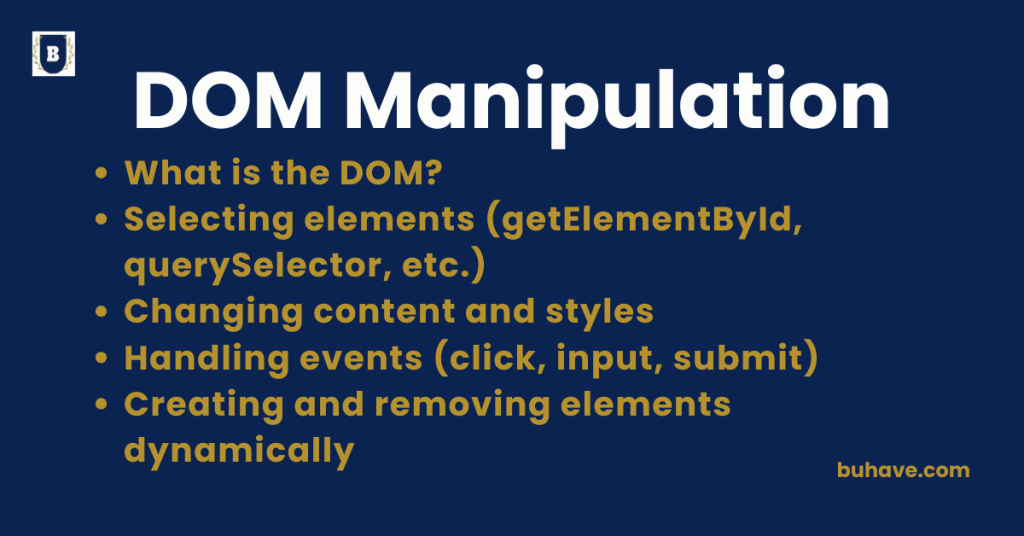
Selecting elements (getElementById, querySelector, etc.)
Why Select Elements?
Selecting elements means grabbing HTML elements using JavaScript so you can read, change, or manipulate them.
You can modify text, style, attributes, or even react to user actions like clicks.
Common Methods to Select Elements
1. GetElementById()
- Purpose: Selects one element with a specific id.
- Returns: A single element (or null if not found).
- Fastest method for selecting.
Syntax:
const element = document.getElementById(“elementId”);
Example:
<h1 id=”main-title”>Welcome!</h1>
const title = document.getElementById(“main-title”);
console.log(title.textContent); // “Welcome!”
Tip: IDs must be unique on a page.
2. getElementsByClassName()
- Purpose: Selects all elements with a specific class name.
- Returns: An HTMLCollection (looks like an array but not exactly).
Syntax:
const elements = document.getElementsByClassName(“className”);
Example:
<p class=”info”>Info 1</p>
<p class=”info”>Info 2</p>
const infoItems = document.getElementsByClassName(“info”);
console.log(infoItems.length); // 2
Access with index infoItems[0], infoItems[1].
3. getElementsByTagName()
- Purpose: Selects all elements of a specific tag (like p, div, h1).
- Returns: An HTMLCollection.
Syntax:
const paragraphs = document.getElementsByTagName(“p”);
Example:
<p>Paragraph 1</p>
<p>Paragraph 2</p>
const allParagraphs = document.getElementsByTagName(“p”);
console.log(allParagraphs.length); // 2
4. querySelector()
- Purpose: Selects the first element that matches a CSS selector.
- Returns: A single element (or null if none found).
- Very powerful and flexible.
Syntax:
const element = document.querySelector(“selector”);
Example:
<div class=”box”>Box 1</div>
<div class=”box”>Box 2</div>
const firstBox = document.querySelector(“.box”);
console.log(firstBox.textContent); // “Box 1”
CSS Selectors: IDs (#id), classes (.class), tags (div), attributes ([type=”text”]).
5. querySelectorAll()
- Purpose: Selects all elements that match a CSS selector.
- Returns: A NodeList (can use forEach).
Syntax:
const elements = document.querySelectorAll(“selector”);
Example:
<p class=”highlight”>First</p>
<p class=”highlight”>Second</p>
const highlights = document.querySelectorAll(“.highlight”);
highlights.forEach(item => console.log(item.textContent));
HTMLCollection vs. NodeList
| Feature | HTMLCollection | NodeList |
|---|---|---|
| Returned by | getElementsByClassName, getElementsByTagName | querySelectorAll |
| Live Update | Yes (updates if DOM changes) | No (static snapshot) |
| forEach() Method | (needs conversion) | (direct use) |
Choosing the Right Method
| Situation | Best Method |
|---|---|
| Need single element by ID | getElementById() |
| Need elements by class name or tag | getElementsByClassName(),getElementsByTagName() |
| Need first match by CSS selector | querySelector() |
| Need all matches by CSS selector | querySelectorAll() |
Real Example – Full Flow
HTML:
<h1 id=”site-title”>Hello</h1>
<p class=”description”>First paragraph.</p>
<p class=”description”>Second paragraph.</p>
New to HTML? See our Introduction to HTML course for fundamentals.
JavaScript:
const title = document.getElementById(“site-title”);
const descriptions = document.getElementsByClassName(“description”);
const firstParagraph = document.querySelector(“.description”);
const allParagraphs = document.querySelectorAll(“.description”);
console.log(title.textContent); // Hello
console.log(descriptions.length); // 2
console.log(firstParagraph.textContent); // First paragraph.
allParagraphs.forEach(p => console.log(p.textContent));
Quick Summary:
In JavaScript, you can select elements using methods like getElementById, querySelector, getElementsByClassName, and querySelectorAll to manipulate or interact with the page easily.
Changing content and styles
Why Change Content and Styles?
Using JavaScript, you can dynamically update:
- Text
- HTML structure
- CSS styles
This makes websites interactive, dynamic, and user-friendly — no page reload needed!
Changing Content
There are several ways to change the content of HTML elements:
1. Text Content
- Sets or gets the text inside an element.
- Ignores HTML tags, treats everything as plain text.
Syntax:
element.textContent = “New Text Here”;
HTML:
<p id=”greet”>Hello!</p>
JavaScript:
const greet = document.getElementById(“greet”);
greet.textContent = “Welcome to the site!”;
Result: Only text is inserted.
2. Inner HTML
- Sets or gets the HTML content inside an element.
- Allows HTML tags inside.
Syntax:
element.innerHTML = “<strong>Bold Text</strong>”;
Example:
<div id=”content”></div>
JavaScript:
const content = document.getElementById(“content”);
content.innerHTML = “<h2>New Heading</h2><p>New paragraph!</p>”;
- Result: HTML structure is rendered inside the div.
- Warning: Using innerHTML can open security risks (like XSS attacks) if you insert untrusted content.
Handling events (click, input, submit)
Handling Events in JavaScript
JavaScript allows you to handle user interactions (events) like clicks, inputs, and form submissions to make web pages dynamic. Events are triggered by user actions, such as clicking a button or typing in a text box, and JavaScript listens for these events to execute a function.
For a deeper dive into event handling patterns, see our Advanced JavaScript Concepts course.
There are many types of Handling Events in JavaScript.
1. Event Types
- Click: Triggered when a user clicks an element (e.g., button, link).
- Input: Triggered when a user types into a text field or textarea.
- Submit: Triggered when a user submits a form.
2. Attaching Event Listeners
Method 1: Using addEventListener()
The addEventListener() method attaches an event handler to an element. It’s flexible and allows multiple event listeners for the same event.
Example – Handling a Click Event:
<button id=”myButton”>Click Me</button>
<script>
const button = document.getElementById(‘myButton’);
button.addEventListener(‘click’, function() {
alert(‘Button clicked!’);
});
</script>
Example – Handling Input Event:
<input type=”text” id=”myInput” placeholder=”Ty