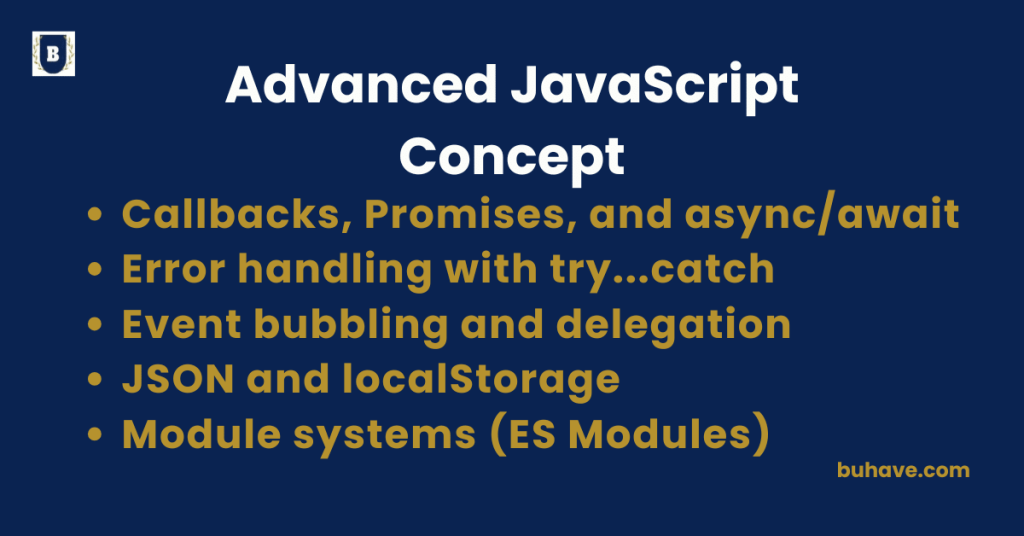
Callbacks, Promises, and async/await
Handling asynchronous operations is essential in JavaScript, from fetching data over a network to reading files or scheduling tasks. JavaScript provides callbacks, Promises, and async/await to manage asynchronous work efficiently. For foundational concepts in JavaScript, consider exploring the Introduction to JavaScript course.
Callbacks
A callback is simply a function passed into another function as an argument, which is then invoked inside the outer function. This concept is foundational in JavaScript and is covered in depth in the Basics and Syntax course.
function fetchData(callback) {
setTimeout(() => {
callback(‘Data received!’);
}, 2000);
}
fetchData(function(data) {
console.log(data); // Output after 2 seconds: Data received!
});
Problems with Callbacks:
- Callback Hell: Deep nesting of callbacks.
- Harder to read and maintain.
- Difficult to handle errors properly.
Promises
A Promise represents a value that may be available now, later, or never. It’s an object with three states:
- Pending – operation is ongoing.
- Fulfilled – operation completed successfully.
- Rejected – operation failed.
A Promise represents a value that may be available now, later, or never. It’s an object with three states:
const fetchData = new Promise((resolve, reject) => {
setTimeout(() => {
resolve(‘Data received!’);
}, 2000);
});
fetchData.then(data => {
console.log(data);
}).catch(error => {
console.error(error);
});
For patterns around data fetching and side effects that Promises enable, see the Data Fetching and Side Effects course.
Advantages of Promises:
- Cleaner syntax.
- Easy error handling with .catch().
- Chaining with .then().
Async/Await
async/await is syntactic sugar built on top of Promises, making asynchronous code look synchronous and easier to write. For a broader overview of asynchronous patterns and how they fit into JavaScript, see the Introduction to JavaScript course.
- Async makes a function return a Promise.
- Await pauses the execution of an async function until the Promise is resolved.
async function fetchData() {
try {
const data = await new Promise((resolve) => {
setTimeout(() => resolve(‘Data received!’), 2000);
});
console.log(data);
} catch (error) {
console.error(error);
}
}
fetchData();
Advantages of async/await:
- More readable and straightforward code.
- Better error handling with try…catch.
- Easier to maintain and debug.
Quick Summary:
- Callbacks laid the groundwork for async tasks but can result in deeply nested, hard-to-maintain code.
- Promises offer clearer structure and centralized error handling through .catch().
- async/await makes asynchronous code look synchronous, improving readability and debugging.
Error handling with try…catch
JavaScript provides the try…catch statement to gracefully handle errors that might occur during code execution without crashing the program.
How try…catch Works
- Try block: You place the code that may throw an error inside the try block.
- Catch block: If an error occurs in the try block, the catch block will execute, allowing you to handle the error.
try {
let result = riskyFunction();
console.log(result);
} catch (error) {
console.error(‘An error occurred:’, error.message);
}
If riskyFunction() throws an error, JavaScript jumps to the catch block and runs the code inside it.
Error Object
- In the catch(error) block, the error object contains:
- Name: Type of the error (e.g., ReferenceError, TypeError).
- Message: Human-readable description of the error.
- Stack: Stack trace (useful for debugging).
Example:
try {
let x = y + 1; // y is not defined
} catch (err) {
console.log(err.name); // ReferenceError
console.log(err.message); // y is not defined
}
Optional finally Block
You can add a finally block after try…catch, which always runs, whether an error occurred or not — useful for cleanup tasks.
try {
// risky code
} catch (error) {
console.error(error);
} finally {
console.log(‘This always runs.’);
}
Common Use Cases for try…catch
- Handling network errors (fetch failures)
- Parsing JSON data (JSON.parse)
- File operations (in Node.js)
- Validating user input
- Preventing app crashes due to minor errors
Quick Summary:
- Wrap risky code inside try.
- Handle exceptions in catch.
- Use finally for code that must run regardless of errors.
- Try…catch improves app stability, debugging, and user experience.
Event Bubbling and Delegation
What is Event Bubbling?
Event bubbling happens when an event on a specific element starts there and bubbles up through its parent elements in the DOM hierarchy.
It allows parent elements to react to events fired by their children, unless the bubbling is stopped.
Example:
<div id=”parent”>
<button id=”child”>Click Me</button>
</div>
document.getElementById(‘child’).addEventListener(‘click’, () => {
console.log(‘Child clicked’);
});
document.getElementById(‘parent’).addEventListener(‘click’, () => {
console.log(‘Parent clicked’);
});
When the button is clicked:
- First, Child clicked logs.
- Then, Parent clicked logs because the event bubbles up to the parent.
Stopping Event Bubbling
You can prevent the event from reaching parent elements using event.stopPropagation():
document.getElementById(‘child’).addEventListener(‘click’, (event) => {
event.stopPropagation();
console.log(‘Child clicked, bubbling stopped’);
});
Now only the child’s message will log.
What is Event Delegation?
- Event delegation is a pattern where one event listener is attached to a parent element.
- The parent catches events that bubble up from children, even if children are added dynamically.
Example:
document.getElementById(‘parent’).addEventListener(‘click’, (event) => {
if (event.target.tagName === ‘BUTTON’) {
console.log(‘Button clicked:’, event.target.textContent);
}
});
This way, you don’t need to individually add event listeners to each button.
Benefits of Event Delegation
- Better Performance: Fewer event listeners on the page.
- Dynamic Content Handling: New elements automatically work without extra code.
- Simplified Code: Easier maintenance and upgrades.
Quick Recap:
- Event Bubbling = Events rise from the target to the top.
- Event Delegation = Listen at a higher level to handle multiple child events smartly.
JSON and localStorage
What is JSON?
- JSON stands for JavaScript Object Notation.
- It is a lightweight data format used for storing and exchanging data between a server and a client.
- JSON is easy to read and write for both humans and machines.
- It looks like JavaScript objects but only supports text (no functions, no methods).
Example JSON:
{
“name”: “Alice”,
“age”: 25,
“isStudent”: true
}
Working with JSON in JavaScript
Convert an object to JSON string (serialization):
const user = { name: “Alice”, age: 25 };
const jsonString = JSON.stringify(user);
console.log(jsonString); // ‘{“name”:”Alice”,”age”:25}’
Convert JSON string back to object (deserialization):
const parsedUser = JSON.parse(jsonString);
console.log(parsedUser.name); // ‘Alice’
What is localStorage?
- localStorage is a web storage API that allows you to store data in the browser.
- It persists even after the page is refreshed or the browser is closed.
- Data is stored as key-value pairs and always as strings.
Basic localStorage methods:
- setItem(key, value): Store data
- getItem(key): Retrieve data
- removeItem(key): Remove a specific item
- clear(): Remove all data
Storing and Retrieving JSON with localStorage
Since localStorage only stores strings, you usually stringify objects before storing and parse them after retrieving:
// Saving an object
const settings = { theme: “dark”, fontSize: 14 };
localStorage.setItem(“userSettings”, JSON.stringify(settings));
// Getting and parsing the object
const savedSettings = JSON.parse(localStorage.getItem(“userSettings”));
console.log(savedSettings.theme); // ‘dark’
See Real-World Applications for practical examples of storing structured data in the browser.
Key Points to Remember
- Always use JSON.stringify() before saving objects/arrays to localStorage.
- Always use JSON.parse() after retrieving them.
- localStorage is synchronous (can block the main thread if overused).
- Storage limit is usually around 5MB per domain.
Quick Recap:
- JSON: Lightweight text format for data.
- localStorage: Browser-based storage that persists data across sessions.
- Together, they allow easy saving and loading of structured data!
Module systems (ES Modules)
What are ES Modules (ESM)?
ES Modules (or ESM) are the official module system introduced in JavaScript to enable the organization and reuse of code.
Prior to ESM, JavaScript used CommonJS and other formats like AMD for modules, but ESM provides a native, modern, and standardized way of working with modules in JavaScript.
Features of ES Modules
- Importing and Exporting: You can use import to bring in code from other files, and export to make parts of your code available to other files.
- Static Import: ES Modules use static imports, which means the dependencies are resolved at compile-time, allowing for better performance and optimizations.
Importing and Exporting in ES Modules
1. Exporting Functions, Variables, and Objects
- Named Export: Export individual functions, variables, or objects.
// module.js
export const name = ‘Alice’;
export function greet() {
console.log(‘Hello, ‘ + name);
}
- Default Export: Export a single entity (like a function or object) from the module.
// utils.js
export default function sum(a, b) {
return a + b;
}
2. Importing in Other Files
- Named Import: Import specific exports from a module.
// app.js
import { name, greet } from ‘./module.js’;
console.log(name); // Alice
greet(); // Hello, Alice
- Default Import: Import the default export from a module.
// app.js
import sum from ‘./utils.js’;
console.log(sum(2, 3)); // 5
- Import All: Import everything from a module as a single object.
// app.js
import * as utils from ‘./utils.js’;
console.log(utils.sum(2, 3)); // 5
How to Use ES Modules in the Browser
- In browsers, you can use modules by adding the type=”module” attribute to the <script> tag.
- This allows you to use import and export directly in the browser without any bundling.
<script type=”module”>
// Example module usage in the browser
</script>
For a broader view of module usage in JavaScript, consider the Basics and Syntax course.