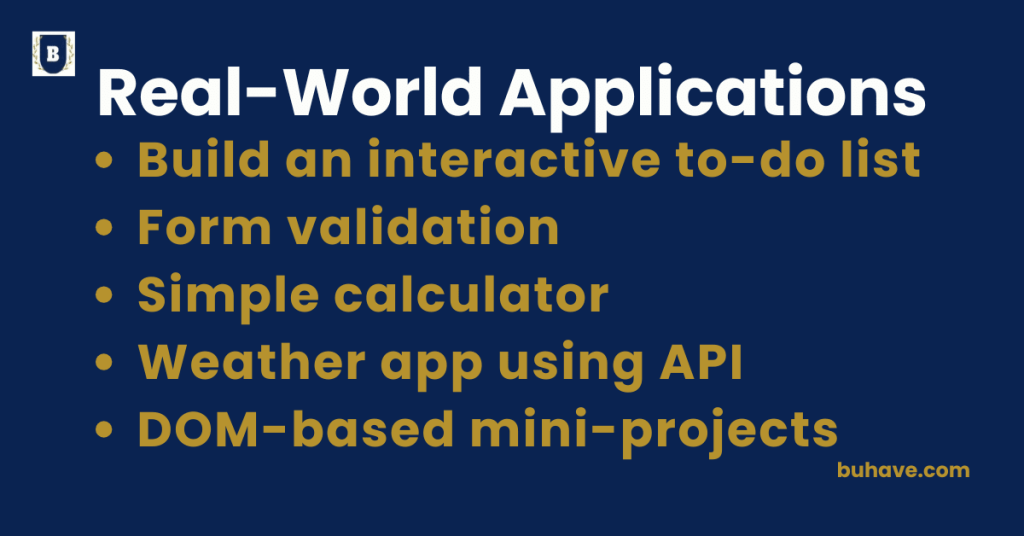
Build an interactive to-do list
1. HTML Structure
The HTML will consist of the basic layout for the to-do list. For a quick refresher on HTML structure, see our Introduction to HTML guide. We’ll need an input field, a button to add new tasks, and a list to display the tasks.
<!DOCTYPE html>
<html lang=”en”>
<head>
<meta charset=”UTF-8″>
<meta name=”viewport” content=”width=device-width, initial-scale=1.0″>
<title>To-Do List</title>
<link rel=”stylesheet” href=”styles.css”>
</head>
<body>
<div class=”todo-container”>
<h1>My To-Do List</h1>
<input type=”text” id=”taskInput” placeholder=”Enter a new task”>
<button id=”addTaskButton”>Add Task</button>
<ul id=”taskList”></ul>
</div>
<script src=”script.js”></script>
</body>
</html>
2. CSS Styling
The CSS will style the to-do list, making it visually appealing. See our Introduction to CSS for foundational styling concepts.
/* styles.css */
body {
font-family: Arial, sans-serif;
background-color: #f4f4f9;
display: flex;
justify-content: center;
align-items: center;
height: 100vh;
margin: 0;
}
.todo-container {
background-color: #fff;
padding: 20px;
box-shadow: 0 0 10px rgba(0, 0, 0, 0.1);
border-radius: 8px;
width: 300px;
}
h1 {
text-align: center;
}
input, button {
width: 100%;
padding: 10px;
margin: 5px 0;
border: 1px solid #ccc;
border-radius: 4px;
}
button {
background-color: #4CAF50;
color: white;
border: none;
cursor: pointer;
}
button:hover {
background-color: #45a049;
}
ul {
list-style-type: none;
padding-left: 0;
}
li {
background-color: #f1f1f1;
margin: 5px 0;
padding: 10px;
border-radius: 4px;
display: flex;
justify-content: space-between;
align-items: center;
}
li.done {
text-decoration: line-through;
color: #888;
}
.delete {
background-color: #ff4d4d;
color: white;
border: none;
border-radius: 4px;
padding: 5px;
cursor: pointer;
}
3. JavaScript Functionality
Now, let’s implement the functionality to add tasks, mark them as complete, and delete tasks, using DOM Manipulation, as taught in our DOM Manipulation course.
// script.js
// Get references to DOM elements
const taskInput = document.getElementById(‘taskInput’);
const addTaskButton = document.getElementById(‘addTaskButton’);
const taskList = document.getElementById(‘taskList’);
// Function to create a new task item
function createTask(taskContent) {
// Create list item
const taskItem = document.createElement(‘li’);
// Create a text node for the task content
const taskText = document.createElement(‘span’);
taskText.textContent = taskContent;
taskItem.appendChild(taskText);
// Create a delete button
const deleteButton = document.createElement(‘button’);
deleteButton.textContent = ‘Delete’;
deleteButton.classList.add(‘delete’);
taskItem.appendChild(deleteButton);
// Append the task item to the task list
taskList.appendChild(taskItem);
// Mark task as done when clicked
taskItem.addEventListener(‘click’, () => {
taskItem.classList.toggle(‘done’);
});
// Delete task when delete button is clicked
deleteButton.addEventListener(‘click’, (event) => {
event.stopPropagation(); // Prevent the click event from propagating to taskItem
taskList.removeChild(taskItem);
});
}
// Add task when the button is clicked
addTaskButton.addEventListener(‘click’, () => {
const taskContent = taskInput.value.trim();
if (taskContent) {
createTask(taskContent);
taskInput.value = ”; // Clear the input field
}
});
// Optionally, allow the user to press Enter to add a task
taskInput.addEventListener(‘keypress’, (event) => {
if (event.key === ‘Enter’) {
addTaskButton.click();
}
});
4. How It Works:
- HTML: We set up the basic structure for the to-do list, including an input field for entering tasks, a button to add tasks, and a list to display them, as introduced in our Introduction to HTML course.
- CSS: Provides a simple yet attractive design with hover effects and styles for completed tasks, aligned with our Introduction to CSS course.
- JavaScript: The script manages the core functionality using DOM Manipulation, DOM Manipulation.
- Deleting tasks: The “Delete” button beside each task allows the user to remove the task from the list.
5. Improvement Ideas:
- Persistent Storage: Save the tasks to localStorage so they persist after refreshing the page.
- Editing Tasks: Allow users to edit task content after it has been added.
- Styling Enhancements: Add icons or animations to improve the UX.
Recap:
You’ve now built a practical, interactive to-do list that demonstrates core HTML, CSS, and JavaScript skills, reinforcing DOM Manipulation concepts from our DOM Manipulation course. You can extend it to store tasks locally, add editing capabilities, or enhance the UI as you continue learning.
This is a great starting point for learning modern JavaScript event handling, DOM manipulation, and user interactions in contemporary browsers.
Form Validation
Form validation is an essential process to ensure that the data submitted by the user is in the correct format and meets the expected criteria. It can be done both on the client-side (using JavaScript) and server-side (on the server after the form is submitted). Here, we’ll focus on client-side form validation using JavaScript.
1. Basic Form Structure (HTML)
Here is an example of a simple form that asks for the user’s name, email, and password.
<!DOCTYPE html>
<html lang=”en”>
<head>
<meta charset=”UTF-8″>
<meta name=”viewport” content=”width=device-width, initial-scale=1.0″>
<title>Form Validation</title>
<link rel=”stylesheet” href=”styles.css”>
</head>
<body>
<div class=”form-container”>
<h2>Sign Up Form</h2>
<form id=”signupForm”>
<label for=”name”>Name:</label>
<input type=”text” id=”name” name=”name” required>
<span class=”error” id=”nameError”></span>
<label for=”email”>Email:</label>
<input type=”email” id=”email” name=”email” required>
<span class=”error” id=”emailError”></span>
<label for=”password”>Password:</label>
<input type=”password” id=”password” name=”password” required>
<span class=”error” id=”passwordError”></span>
<button type=”submit”>Submit</button>
</form>
</div>
<script src=”script.js”></script>
</body>
</html>
2. Basic CSS Styling
We will style the form and error messages to make them more visually distinct, following guidance from our Introduction to CSS course.
/* styles.css */
body {
font-family: Arial, sans-serif;
background-color: #f8f9fa;
display: flex;
justify-content: center;
align-items: center;
height: 100vh;
margin: 0;
}
.form-container {
background-color: #fff;
padding: 20px;
box-shadow: 0 0 10px rgba(0, 0, 0, 0.1);
width: 300px;
border-radius: 8px;
}
h2 {
text-align: center;
}
label {
display: block;
margin: 10px 0 5px;
}
input {
width: 100%;
padding: 10px;
margin-bottom: 15px;
border: 1px solid #ccc;
border-radius: 4px;
}
button {
background-color: #4CAF50;
color: white;
width: 100%;
padding: 10px;
border: none;
border-radius: 4px;
cursor: pointer;
}
button:hover {
background-color: #45a049;
}
.error {
color: red;
font-size: 12px;
}
3. JavaScript for Form Validation
Now, let’s implement JavaScript to validate the form before submission, building on the DOM Manipulation concepts from our DOM Manipulation course.
// script.js